Buy private cheat BLEAK PUBG LITE for PUBG: Battlegrounds
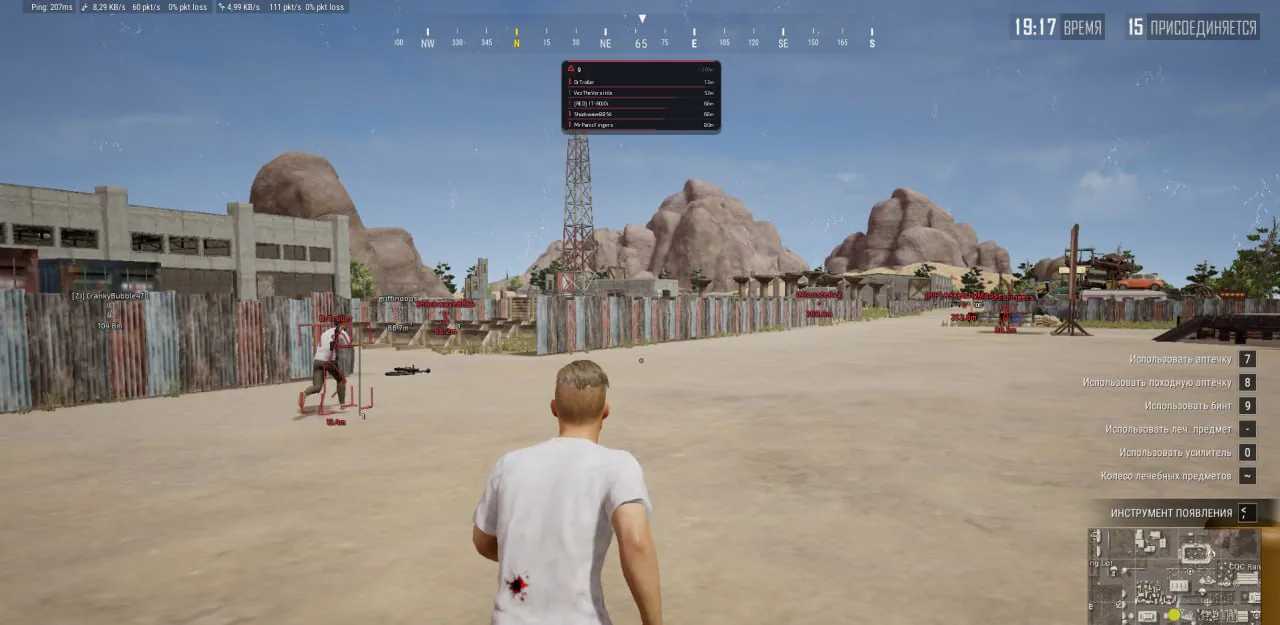
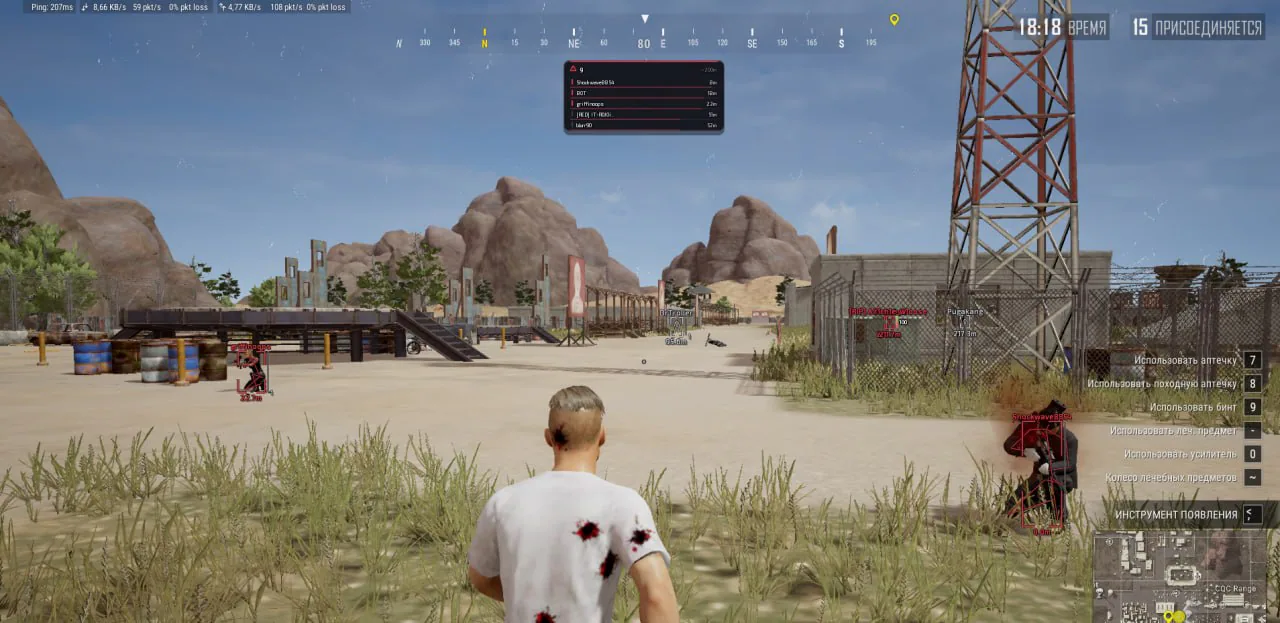
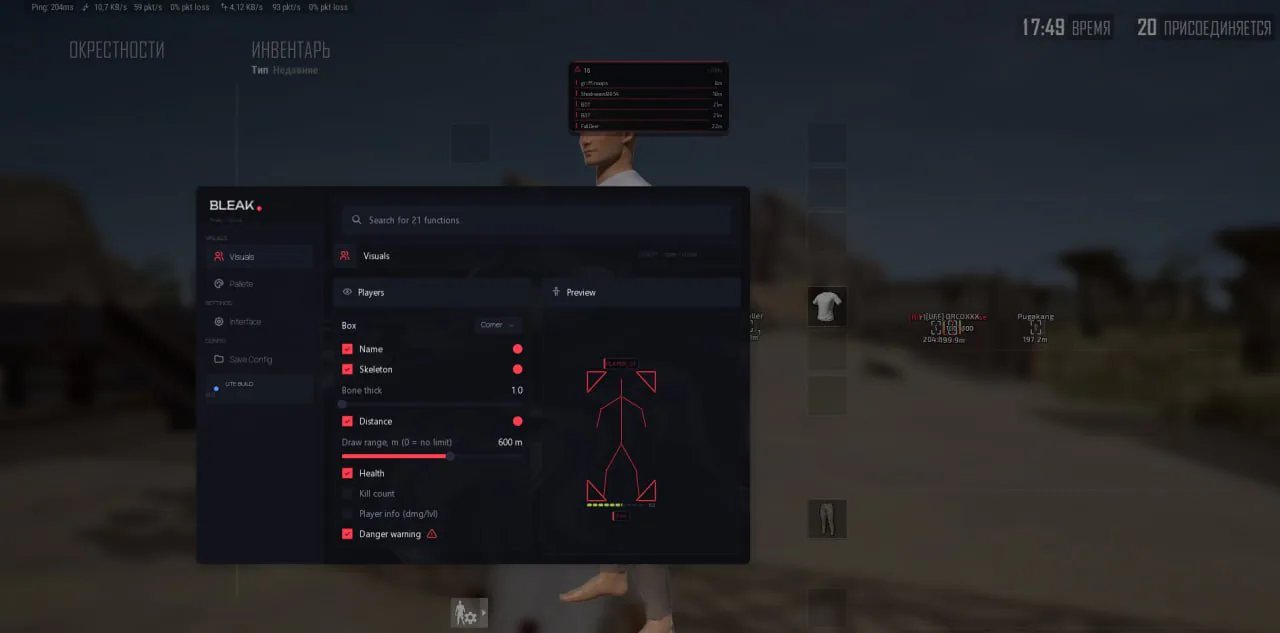
Private cheat BLEAK PUBG LITE for PUBG: Battlegrounds — visibility checks, player ESP and movement prediction. Also included: configuration profiles and skeleton display. Client: Steam.
Compatibility
- Game client
- Steam
- Operating systems
- Windows 10–11 (2004–26H1)
- Secure Boot
- TPM and Secure Boot changes are optional
- BIOS
- Any
- Disk type
- Any
- Required overlay
- New Discord overlay; legacy overlay disabled
- Must disable
- Windows Defender, VBS, Core Isolation
- Overlay setup
- New Discord overlay; legacy overlay disabled
- Display mode
- Borderless
Features
Player rendering
- Select the type of box displayed around the target: Full, Corner, 3D Box or None. (Box Type)
- Displays player nicknames above players' heads. (Names)
- Enables display of the enemy's skeleton. Self-calibrating: after game updates the leg bones are re-matched automatically, no waiting for a fix. (Skeleton)
- A compact head marker (a volumetric "hat" cone) instead of the full skeleton - minimal visual noise. (Head circle)
- Slider for adjusting the thickness of the skeleton lines (1-5). (Bone Thick)
- Displays the distance to the target in meters. (Distance)
- Player rendering range in meters (0-1000; 0 = no limit). Near the range border the ESP smoothly fades out and the text shrinks - the picture stays clean. More distant enemies are not rendered and do not load the reading channel. (Draw range)
Player information
- Enables the health bar (a vertical bar to the right of the box, with a white "ghost" of the last damage dealt). (Health)
- ESP visibility check: on - players are split into "visible / not visible" with separate colors, off - everyone is drawn in one color. (Visible Check)
- Shows the player's kill count in the current match next to the box (K). (Kills)
- Shows additional information: damage dealt (DMG) next to the box and the survival level (LV) under the nickname. (Player info)
- Weapon in hands: shows the name of the weapon the player is holding, as a line under the box. (Weapon)
- Ammo in mag: shows the ammo of the held weapon next to the name, "AKM [27]". The bracket color is set by the swatch right on the toggle. (Ammo)
Player warnings
- Warning panel about nearby enemies: a counter of enemies within 200m and a list of the 5 closest ones (name, distance bar, K/DMG). In the Lite build the panel sits top-center. (Danger warning)
- Knocked-down players are highlighted with a dedicated color across all ESP elements - you instantly see who to finish off. (Knocked)
- Live preview of your configured ESP right in the menu (box, skeleton, name, level, distance, health bar). (Preview)
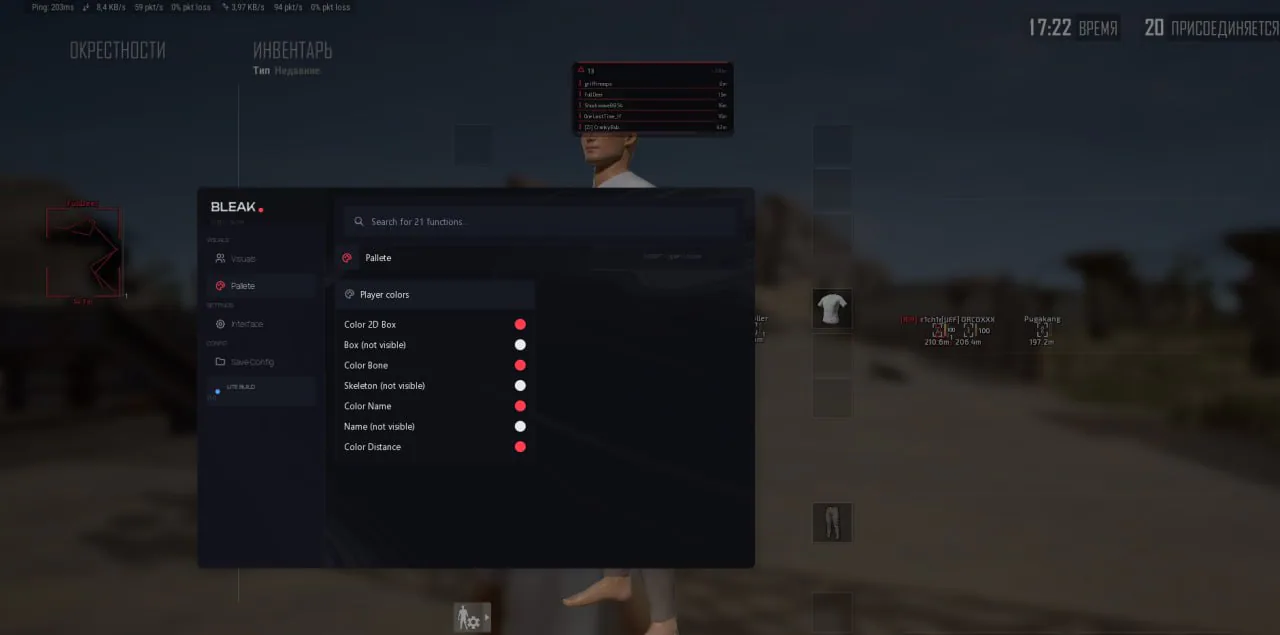
Color palette
- Color of the box around the enemy. (Color 2D Box)
- Box color for the "not visible" rendering variant. (Box (not visible))
- Color of the skeleton lines. (Color Bone)
- Skeleton color for the "not visible" variant. (Skeleton (not visible))
- Player nickname color. (Color Name)
- Name color for the "not visible" variant. (Name (not visible))
- Distance text color. (Color Distance)
Menu and overlay
- Menu accent (theme) color. (Menu color)
- Animated wave background of the menu. Can be turned off - convenient for screenshots and video recording. (Menu background animation)
- Overlay FPS limit (0-360): raise it for smoother ESP. (Overlay FPS limit)
- On-screen watermark. (Watermark)
- ESP text font: Pixel (default) / Minecraft / Exo2. Applied instantly, no re-injection needed. (ESP font)
- ESP font size in pixels (6-18; the range depends on the selected font). (ESP font size)
Language and controls
- Menu language: English / Russian (all menu items and item names are translated). (Language)
- When the game (TslGame.exe) closes, the software exits: the overlay disappears and the Discord process closes. (Auto-exit)
- Search bar across all menu functions (in the header). (Search)
- Open / close the menu. (INSERT)
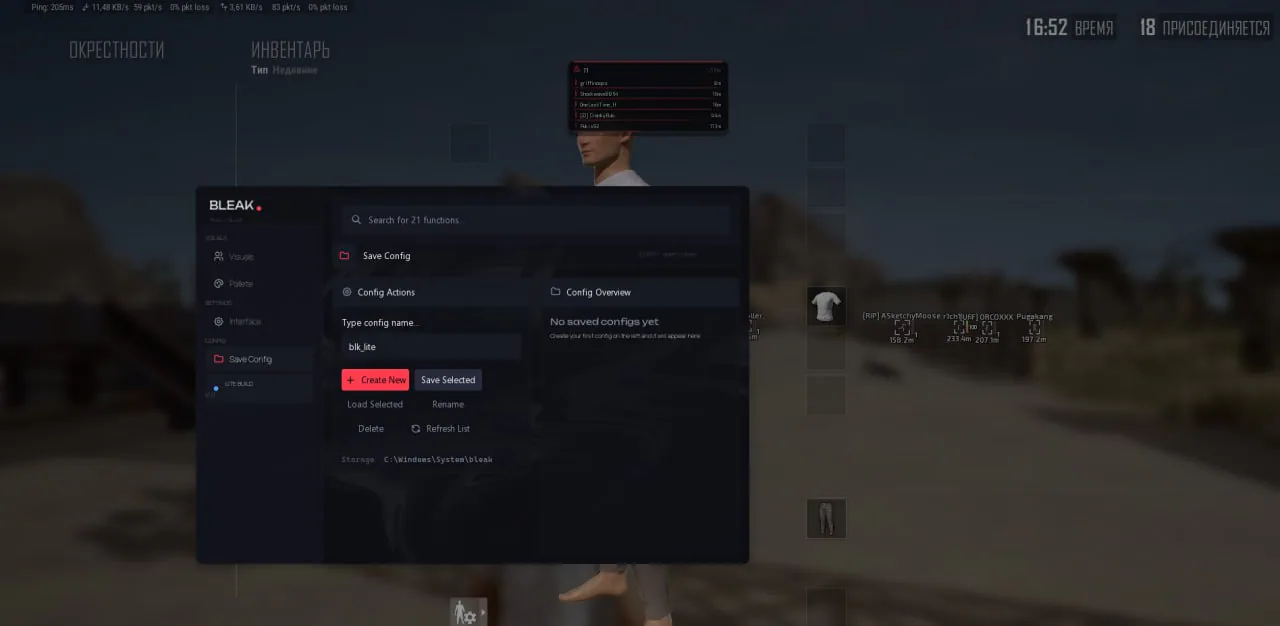
Configuration profiles
- Enter a name for your new configuration file (the Lite build name is pre-filled by default - blk_lite). (Input Name)
- Create and save a new configuration file with the entered name. (Create New)
- Overwrite the configuration with the typed name using the current menu settings. (Save Selected)
- Load settings from the configuration file selected in the list (applies them to the current session). (Load Selected)
- Rename an existing configuration file selected in the list. (Rename)
- Permanently delete the selected configuration file. (Delete)
- Force a refresh of the configuration list (useful if files were transferred manually). (Refresh List)
- Shows all saved configurations; the applied one is marked with an ACTIVE badge, and a double click on a row instantly loads it. The last active configuration is picked up automatically on the next launch. (Config list)
Setup and launch
Check the launch procedure for this exact edition before activating the key.
Open launch guide