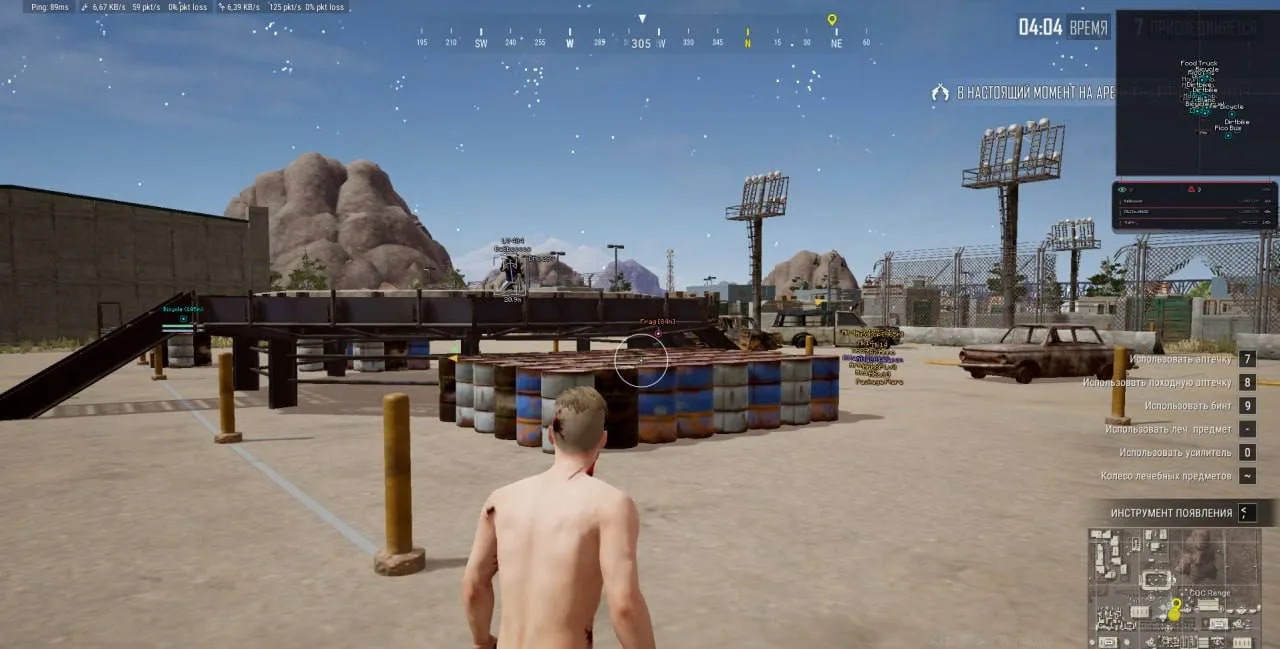
Buy private cheat BLEAK PUBG for PUBG: Battlegrounds
Private cheat BLEAK PUBG for PUBG: Battlegrounds — Chams model highlights, aiming controls and off-screen indicators. Also included: target selection radius and item filters. Client: Steam.
Compatibility
- Game client
- Steam
- Operating systems
- Windows 10–11 (2004–26H1)
- Secure Boot
- TPM and Secure Boot changes are optional
- BIOS
- Any
- Disk type
- Any
- Required overlay
- New Discord overlay; legacy overlay disabled; interactive regions enabled; compatibility mode disabled
- Must disable
- Windows Defender, VBS, Core Isolation
- Overlay setup
- New Discord overlay; legacy overlay disabled; interactive regions enabled; compatibility mode disabled
- Display mode
- Borderless
Features
Aim assistance
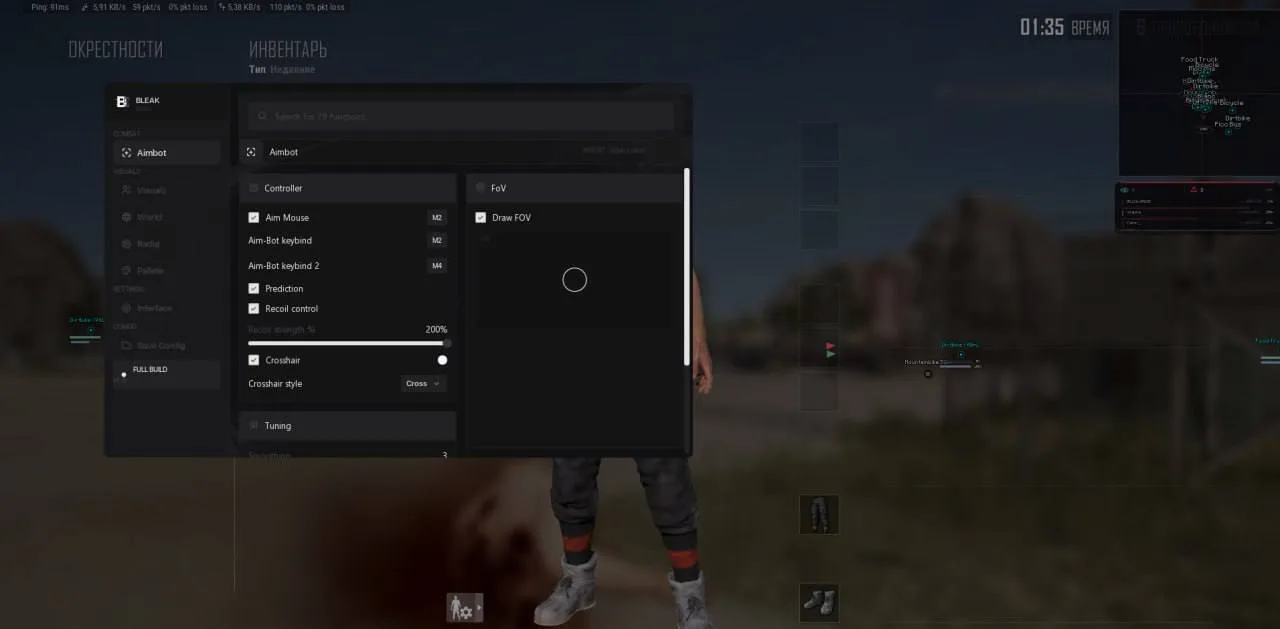
- AimBot's main switch. Activates standard auto-aiming at enemies inside the FoV zone. (Aim Mouse)
- Primary activation key. Aiming only works while holding this key, making it controlled and natural. (Aim-Bot keybind)
- Second (additional) activation key - convenient to bind to a mouse side button. (Aim-Bot keybind 2)
- Bullet prediction: while aiming, a marker shows the real point of impact - accounting for target movement (lead) and bullet drop over distance. Ballistics are taken from the weapon currently in your hands. (Bullet prediction)
- Recoil control: while firing and aiming (LMB + RMB) the crosshair is smoothly pulled down, compensating weapon climb. The base strength automatically adapts to the weapon type in your hands (AR/SMG/DMR/snipers). Only works with the menu closed - UI clicks never move the camera. (Recoil control)
- Manual adjustment of the recoil pull-down strength (0-200%). Default is 200. (Recoil strength %)
- Enables the display of a static crosshair in the center of the screen (with its own color). (Crosshair)
- Static crosshair style: Dot, Cross, T-Cross, Ring or Chevron. (Crosshair style)
- The smoothing strength of the crosshair (1-10). High values create a smooth, human-like movement, rather than sharp, robotic jerks. A key setting for legitimacy. In Humanize mode it sets the softness of the aiming spring. (Smoothing)
Humanize and targeting
- Human-like aim: the crosshair moves onto the target with live motion - smooth acceleration, deceleration near the target with a slight overshoot and correction, a reaction delay on a new target (~90-330ms) and barely noticeable crosshair sway. Looks like hand aiming, not robot tracking. (Humanize)
- How human it feels (0-100%): scales the reaction delay, sway and slight overshoot. 60% - noticeably alive yet controllable; 0% - pure spring with no effects. (Humanize strength)
- The radius of the aiming area (Field of View) in pixels (0-300): the on-screen area within which the AimBot locks onto a target. (Radius)
- Head (maximum damage, high risk). (Head)
- Neck (good balance of damage and stealth). (Neck)
- Chest (lower damage, but larger hit area and maximum stability). (Chest)
- Auto bone: the AimBot picks the bone (head / neck / pelvis) closest to the crosshair, with a slight random weight - hits spread across bones like a live player's do. The chosen bone is sticky: it holds while the target stays the same and re-rolls about once a second. (Auto (closest bone))
- Show the aiming zone on screen - a clean white circle. A live mini-preview of the zone with the current radius sits next to the setting. (Draw FOV)
Player rendering
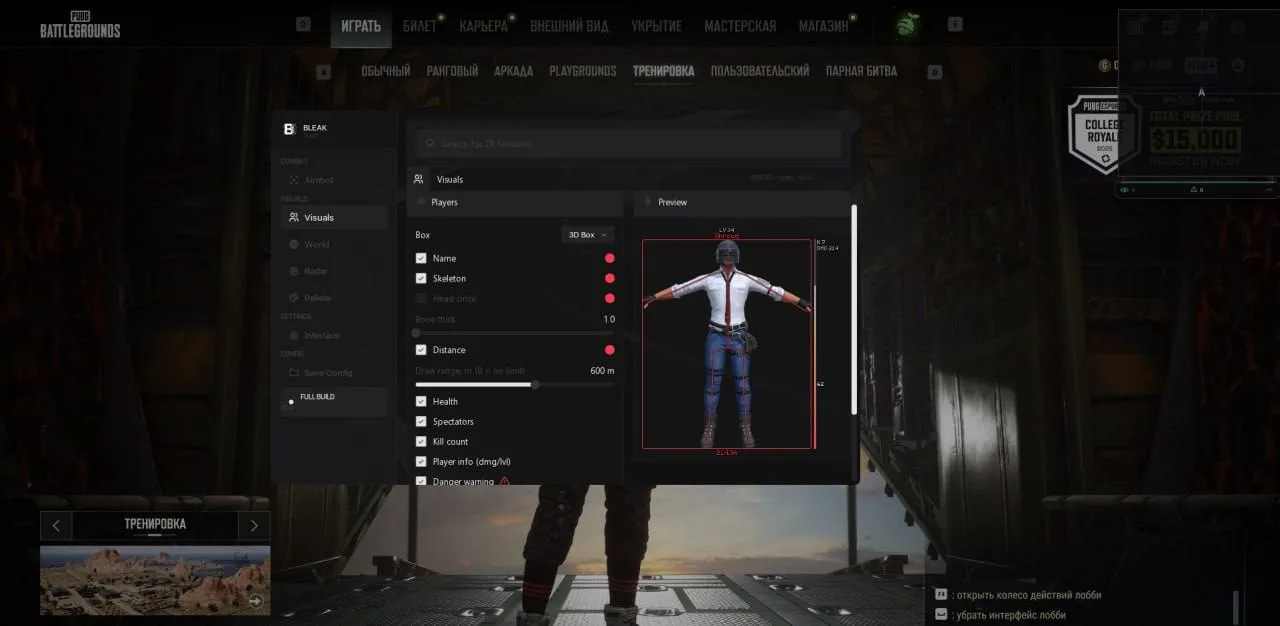
- Select the type of box displayed around the target: Full, Corner, 3D Box or None. (Box Type)
- Displays player nicknames above players' heads. (Names)
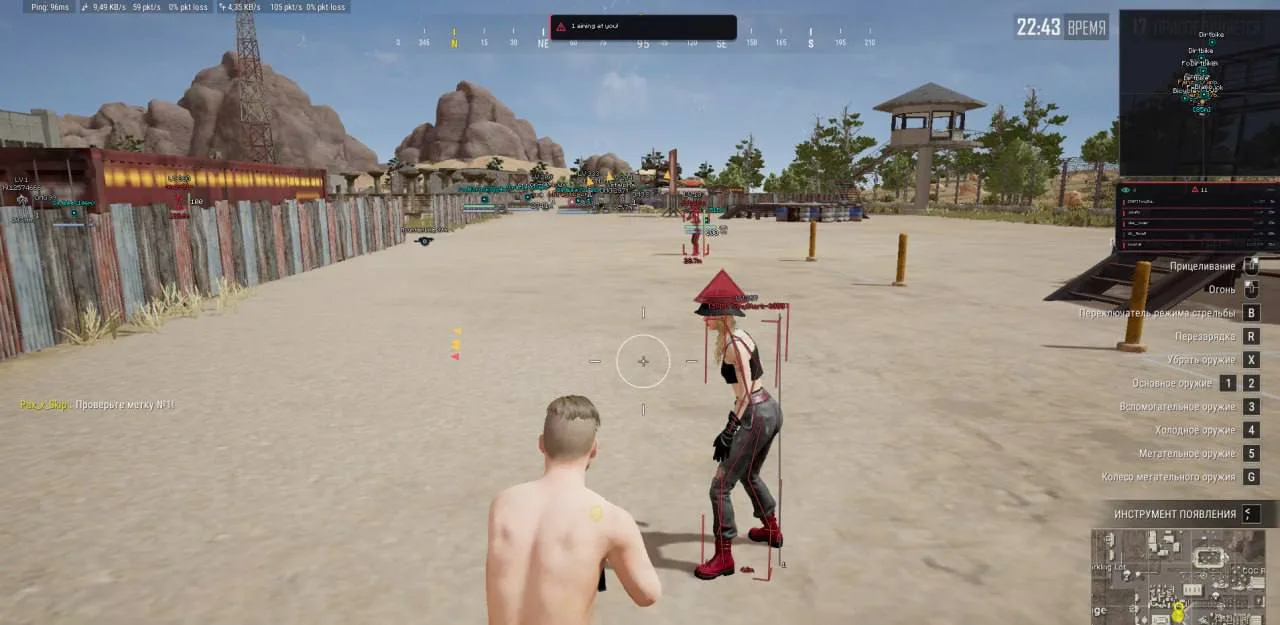
- Enables display of the enemy's skeleton. Self-calibrating: after game updates the leg bones are re-matched automatically, no waiting for a fix. (Skeleton)
- A wireframe silhouette over the player: a bone mesh (limb segments, torso frame with crossbars, groin, head ring). Each bone's color depends on visibility: VISIBLE - red, HIDDEN - green (both colors configurable in the palette). Maximum body-pose readability. (Chams (wire))
- A compact head marker (a volumetric "hat" cone) instead of the full skeleton - minimal visual noise. (Head circle)
- Slider for adjusting the thickness of the skeleton lines (1-5). (Bone Thick)
- Displays the distance to the target in meters. (Distance)
- Player rendering range in meters (0-1000; 0 = no limit). Near the range border the ESP smoothly fades out and the text shrinks - the picture stays clean. (Draw range)
Player information
- Enables the health bar (a vertical bar to the right of the box, with a white "ghost" of the last damage dealt - you see how much you took off). (Health)
- ESP visibility check: on - players are split into "visible / not visible" with separate colors, off - everyone is drawn in one color. (Visible Check)
- Displays the list of spectators (those watching you after death). The counter is shown in the danger panel. (Spectators)
- Shows the player's kill count in the current match next to the box (K). (Kills)
- Shows additional information: damage dealt (DMG) next to the box and the survival level (LV) under the nickname. (Player info)
- Weapon in hands: shows the name of the weapon the player is holding, as a line under the box. (Weapon)
- Ammo in mag: shows the ammo of the held weapon next to the name, "AKM [27]". The bracket color is set by the swatch right on the toggle. (Ammo)
Player warnings
- Warning panel about nearby enemies: a counter of enemies within 200m and a list of the 5 closest ones (name, distance bar, K/DMG). The panel is docked to the radar; with the radar off it sits top-center. (Danger warning)
- Arrows at the screen edges pointing toward off-screen enemies. (Off-screen arrows)
- Radius of the circle along which the off-screen arrows are placed (100-600). (Arrows radius)
- Warning shown when an enemy is aiming directly at you. (Aiming at me warn)
- Knocked-down players are highlighted with a dedicated color across all ESP elements - you instantly see who to finish off. (Knocked)
- Live preview of your configured ESP right in the menu (box, skeleton, name, level, distance, health bar). (Preview)
Loot ESP
- Main toggle for loot ESP (shows dropped items on the ground). (Dropped Items)
- Loot sub-options: item name, distance to it, and the marker icon. (Item Name / Item Distance / Item Marker)
- Select which categories to display: Weapons, Attachments, Ammo, Meds/Boost, Armor, Helmets, Backpacks, Grenades, Other. (Loot filter)
- Show only level-3 gear (Lv3 armor, helmets and backpacks). (Loot 3LVL+)
- Smart filter: accounts for your backpack contents and hides the excess (meds/grenades when you have enough). (Smart loot filter)
- Item rendering distance (0-350m). (Items dist)
- Markers for thrown grenades. (Grenades)
- Marker for the airdrop (falling supply crate). (Airdrop)
- Battle Mode hotkey (F4 by default): one press hides loot, vehicles, grenades and airdrops - only players remain. Instant "loot/combat" switching on the fly. (Battle Mode key)
Vehicle ESP
- Vehicle ESP: a chip marker + a "Name (distance)" line. (Vehicles)
- Vehicle durability bar under the chip (green / amber / red + percentage). (Vehicle Health)
- Vehicle fuel bar under the chip (blue + percentage). (Vehicle Fuel)
- Vehicle rendering distance (0-3000m). (Vehicles dist)
2D radar
- Main toggle, displays a 2D radar: a dark square with a cross grid, chevron contacts pointing in the direction each player moves, and a white arrow of your camera in the center. The radar does NOT rotate with the camera - it is always world-oriented (a map view). (Radar 2D)
- Filters the radar to display only players, hiding loot and vehicles. (Only Players)
- Shows loot on the radar. (Items on radar)
- Shows vehicles on the radar. (Vehicles on radar)
- Radar scale: zoom the display in or out. Objects beyond the radius are hidden instead of piling up at the edge. (Radar Zoom)
- Slider for changing the overall size of the radar window on the screen (from 200 to 700). (Radar size)
- Sliders for precise radar positioning along the X and Y axes of your monitor. With the menu open you can also just drag the radar with the mouse. (X position / Y position)
- Live preview of the radar's look right in the menu. (Appearance)
Color palette
- Color of the box around the enemy. (Color 2D Box)
- Box color for the "not visible" rendering variant. (Box (not visible))
- Color of the skeleton lines. (Color Bone)
- Skeleton color for the "not visible" variant. (Skeleton (not visible))
- Player nickname color. (Color Name)
- Name color for the "not visible" variant. (Name (not visible))
- Distance text color. (Color Distance)
World and crosshair colors
- Wireframe chams colors: "visible" (red by default) and "hidden" (green). (Chams colors)
- Color of the static crosshair in the center of the screen. (Color Crosshair)
- Per-category loot color settings: Weapons, Attachments, Ammo, Meds, Armor, Helmets, Backpacks, Grenades, Other. (Loot colors)
- Ground vehicle ESP color. (Vehicle color)
- Boats / water transport ESP color. (Boat color)
Menu and overlay
- Menu accent (theme) color. (Menu color)
- Animated wave background of the menu. Can be turned off - convenient for screenshots and video recording. (Menu background animation)
- Overlay FPS limit (0-360): raise it for smoother ESP. (Overlay FPS limit)
- On-screen watermark. (Watermark)
- ESP text font: Pixel (default) / Minecraft / Exo2. Applied instantly, no re-injection needed. (ESP font)
- ESP font size in pixels (6-18; the range depends on the selected font). (ESP font size)
Language and controls
- Menu language: English / Russian (all menu items and item names are translated). (Language)
- When the game (TslGame.exe) closes, the software exits: the overlay disappears and the Discord process closes. (Auto-exit)
- Search bar across all menu functions (in the header). (Search)
- Open / close the menu. (INSERT)
Configuration profiles
- Enter a name for your new configuration file (the build name is pre-filled by default - blk_full). (Input Name)
- Create and save a new configuration file with the entered name. (Create New)
- Overwrite the configuration with the typed name using the current menu settings. (Save Selected)
- Load settings from the configuration file selected in the list (applies them to the current session). (Load Selected)
- Rename an existing configuration file selected in the list. (Rename)
- Permanently delete the selected configuration file. (Delete)
- Force a refresh of the configuration list (useful if files were transferred manually). (Refresh List)
- Shows all saved configurations; the applied one is marked with an ACTIVE badge, and a double click on a row instantly loads it. The last active configuration is picked up automatically on the next launch. (Config list)
Setup and launch
Check the launch procedure for this exact edition before activating the key.
Open launch guide