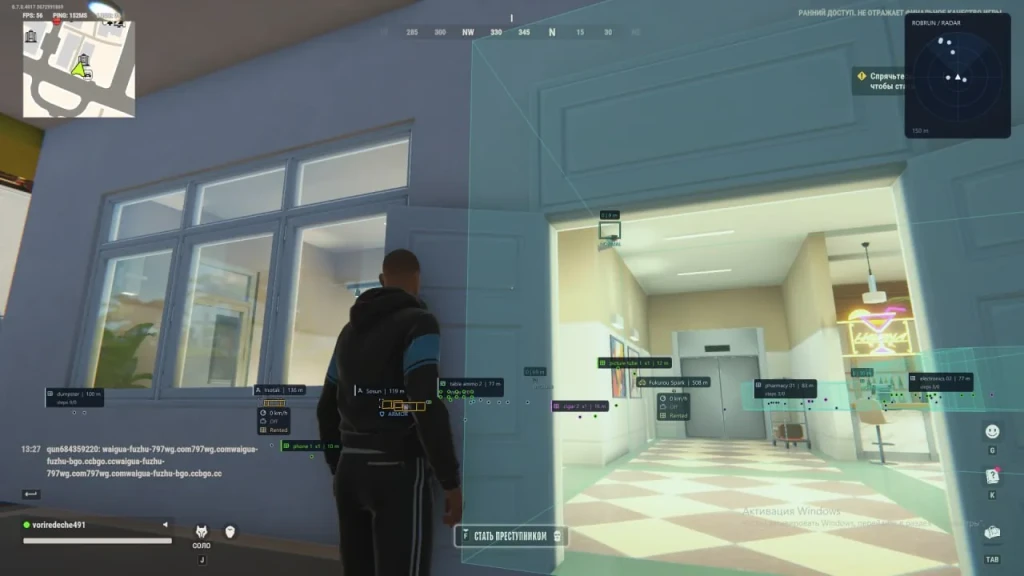
Buy private cheat Phoenix ROB RUN Internal
Private cheat Phoenix ROB RUN Internal — cosmetic changes, aiming controls and team filters. Also included: NPC display and item filters. Client: Steam.

Compatibility
- os
- Windows 10, Windows 11 (21H2, 22H2, 23H2, 24H2, 25H2, 26H1)
- cpu
- Intel & AMD
- gpu
- NVIDIA & AMD
- game client
- Steam
Features
Aimbot
- Enable – enable or disable automatic targeting
- Aim Mode – select the Aimbot operating mode: Memory Aim or Silent Aim
- Keybind – assignment of the Aimbot activation key, RMB is used by default
- Target Categories – selection of target categories for automatic targeting: police, robbers, civilians and others
- Bone Selection – selecting a body area to target: head, neck, chest or pelvis
- Random Bones – randomly select a bone from a pre-selected list for each new goal
- Head Chance – setting the probability of choosing a head when using Random Bones
- FOV – setting the target acquisition radius for Aimbot
- Draw FOV – displays a circle indicating the target acquisition area
- Smooth – adjusting the smoothness of crosshair movement in Memory Aim mode
- Prediction – guidance when aiming, taking into account the target’s speed
- Lead Time – setting the lead time when using Prediction
- Target Priority – select target priority based on proximity to the crosshair or distance to the player
- Max Distance – limiting the maximum operating distance of Aimbot
- Target Switch Delay – adjust the delay before switching automatic targeting to another target
- Team Check – excluding your own character and allies from the list of targets
- Ignore Dead – ignoring dead players
- Readiness Check – blocking of targeting if the character is in a state of being knocked down, dying, recovering or in transport
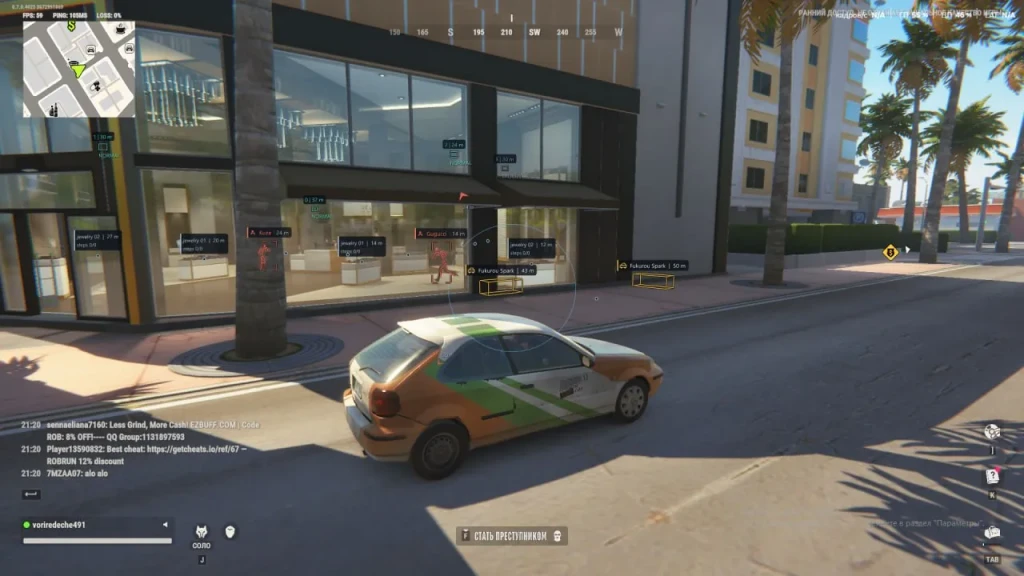
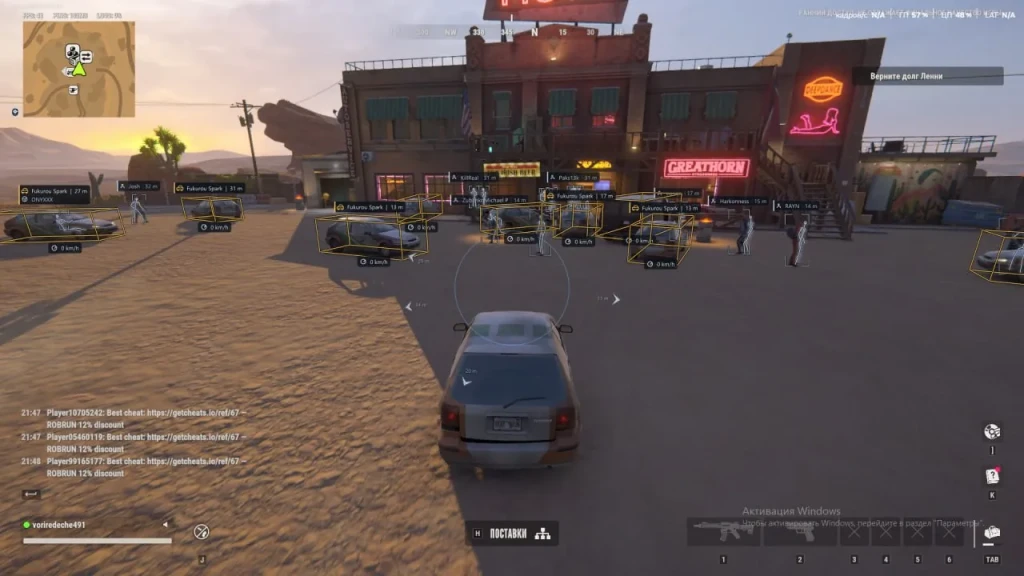
ESP players
- Enable – enable or disable visual display of players
- Player Categories – selection of factions whose members will be displayed via ESP
- ESP Preview – preview of the appearance and arrangement of Player ESP elements
- Bounding Box – displays frames around players with a choice of regular or angular style
- Skeleton – displays the character’s skeleton with settings for line thickness, color and maximum distance
- Head Marker – displays a separate marker in the player’s head area
- Screen Glow – screen glow around players with customizable color, radius and intensity of the effect
- Name – displays the character’s in-game name
- Distance – displays the distance to the player
- Weapon – displays available information about the player’s weapon
- State – displays the current state of the character
- Wanted Status – displays available information about the player’s wanted status
- HP Bar – displays health level as a bar
- HP Text – displays the current amount of health in numerical format
- Armor – displays available information about the player’s armor
- Snaplines – displays lines from a given point on the screen to the players
- Hide Self – hiding your own character from visual elements
- Hide Team – excludes allies from display
- Hide Dead – hiding dead players
- Max Distance – setting the maximum distance for displaying players
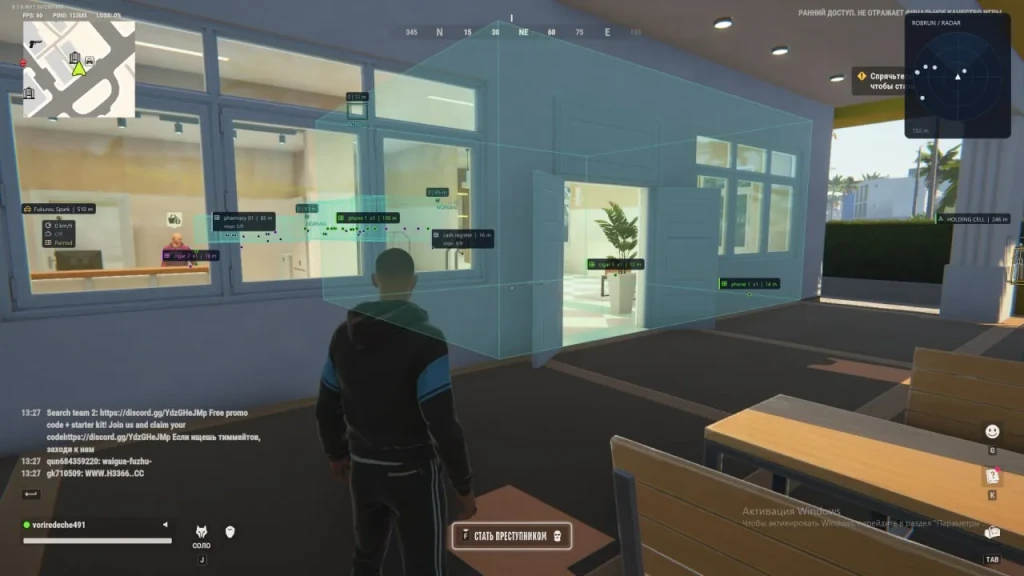
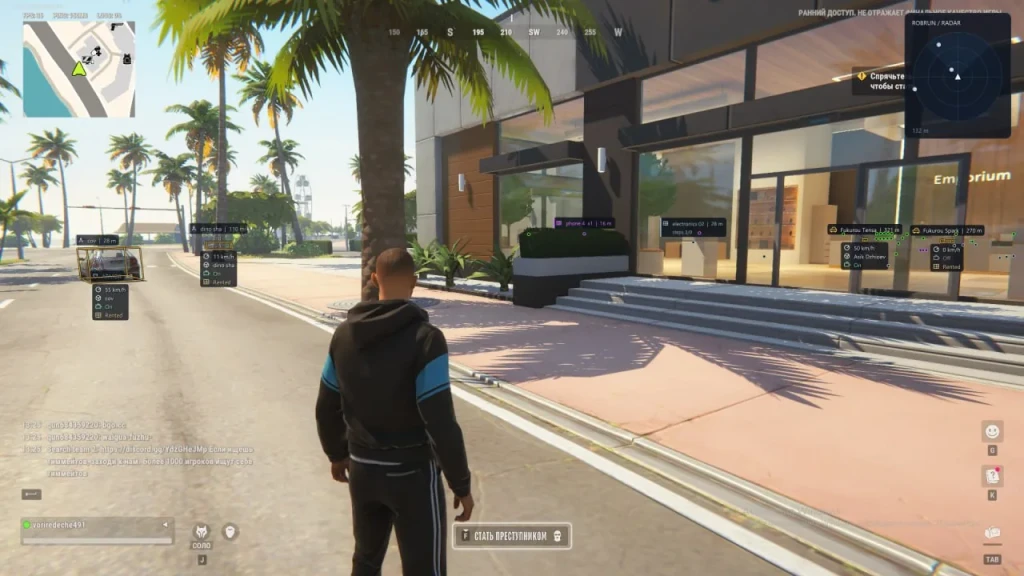
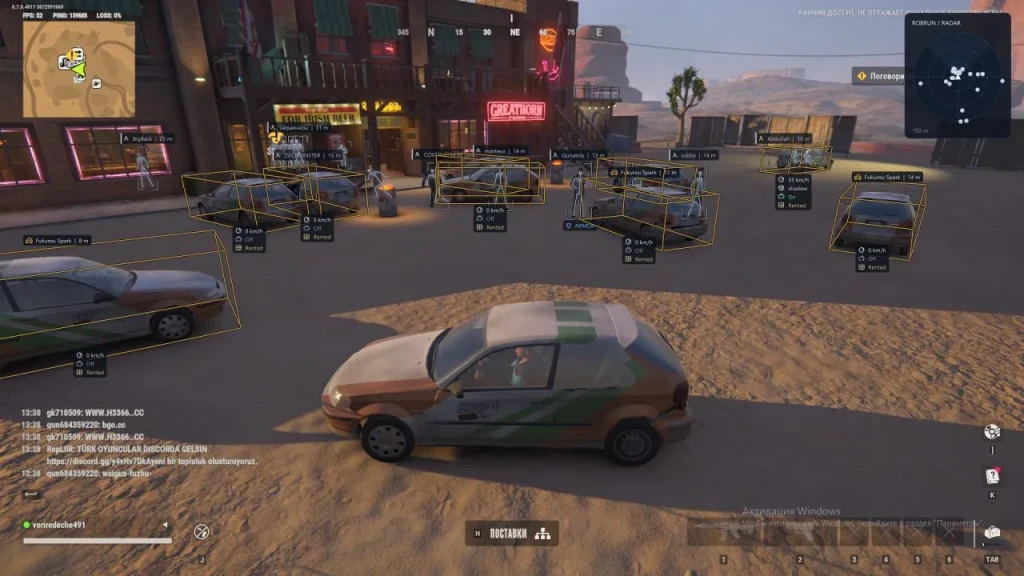
ESP machines
- Vehicle Name – displays the name of the vehicle model
- Driver – displays the driver’s name
- Owner – display information about the owner of the vehicle
- Speed – displays the current vehicle speed
- Engine State – display of engine status
- Cargo – displaying information about cargo availability
- Trunk – trunk status display
- Rental – display of vehicle rental status
- Bounding Box – displaying frames around vehicles with a choice of regular, angular or volumetric 3D style
- Fill Box – fill a frame with the ability to adjust transparency
- Snaplines – displaying lines indicating the location of transport
- Occupied Only – displays only occupied vehicles
- Own Only – display only your own transport
- Hide Own – hiding your own transport from visual elements
- Hide Current – hiding the vehicle the character is in
- Max Distance – setting the maximum distance for displaying vehicles
ESP Bots
- Name – displays the name of the NPC
- State – displays the current state of the NPC
- Bounding Box – displays frames around NPCs
- Distance – displays the distance to the NPC
- Hide Dead – hiding dead NPCs
- Appearance – setting the color and text size of information elements
- Max Distance – setting the maximum distance for displaying NPCs
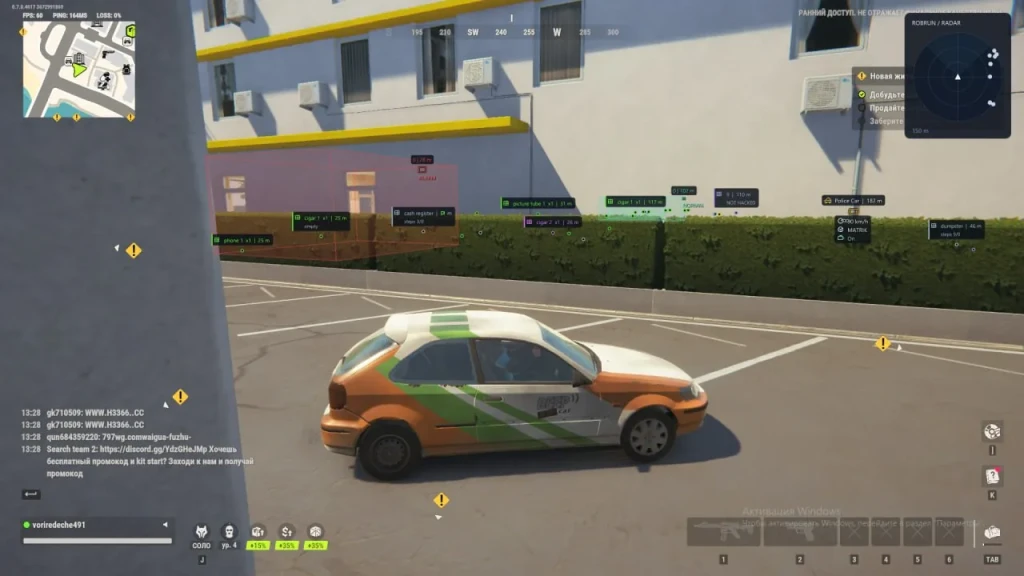
Loot ESP
- Loot Sources – display items, bags, loot nodes and money nodes
- World Objects – displays objects of the game world: cargo, chargers, storage and security panels
- Name – displays the name of an item or object
- Distance – displays the distance to an object or object
- Count – displays the available number of items
- State – displays the current state of the object
- Markers – displays special icons to indicate items and objects
- Categories – filtering of displayed loot by categories: weapons, ammo, armor, equipment, medicine, valuables and other items
- Game Colors – use standard game colors to indicate the rarity of items
- Category Colors – setting your own colors for individual loot categories
- Hide Empty – hiding objects with confirmed empty content
- Max Distance – setting the maximum distance for displaying items and objects
ESP cameras
- Camera ESP – enable display of surveillance cameras
- Name – displays the camera name
- Bounding Box – displaying frames around cameras
- State – displays the current state of the camera
- Detection Zones – displaying camera detection zones
- Zone Fill – filling detection areas to more clearly display their boundaries
- State Colors – setting separate colors for working, broken cameras and cameras in alarm state
- Hide Broken – hiding broken cameras
- Max Distance – setting the maximum camera display distance
Radar hack
- Categories – selection of displayed categories: game factions, NPCs and vehicles
- Rotate With Camera – rotate the radar in accordance with the direction of the camera
- Auto Zoom – automatic change of radar scale
- Names – displays player names on the radar
- Range Rings – displays concentric rings for visual distance estimation
- View Sector – displays the camera’s viewing sector
- Radar Range – setting the object detection radius
- Radar Size – change the overall size of the radar
- Opacity – setting the transparency of the radar background
- Position – changing the position of the radar on the screen when the menu is open
Exploits
- No Recoil – suppression of camera recoil when shooting
- No Sway – suppression of weapon sway
- Local No Spread – suppression of spread on the client side when calculating a shot
- Fast Loot Nodes – reducing client collection time for supported nodes with loot
- Interaction Range – changing the client interaction radius with supported nodes
- Duration Multiplier – setting the collection time multiplier
- Free Camera – enable free camera movement regardless of the character’s position
HUD
- Faction & Warnings – setting factions and warning if someone from another faction is approaching you (many settings)
- Aim Arrows – on/off directional arrows for players around the crosshair (many settings)
- Open Doors – displays warnings about open doors and gates of your own loaded database
- Base Direction – displays the direction in which your own base is located
- Distance – displays the distance to open doors and gates
- Warning Range – setting the maximum distance for checking base objects
- Warning Limit – setting the maximum number of warnings displayed simultaneously
Other features of Phoenix Full ROB RUN
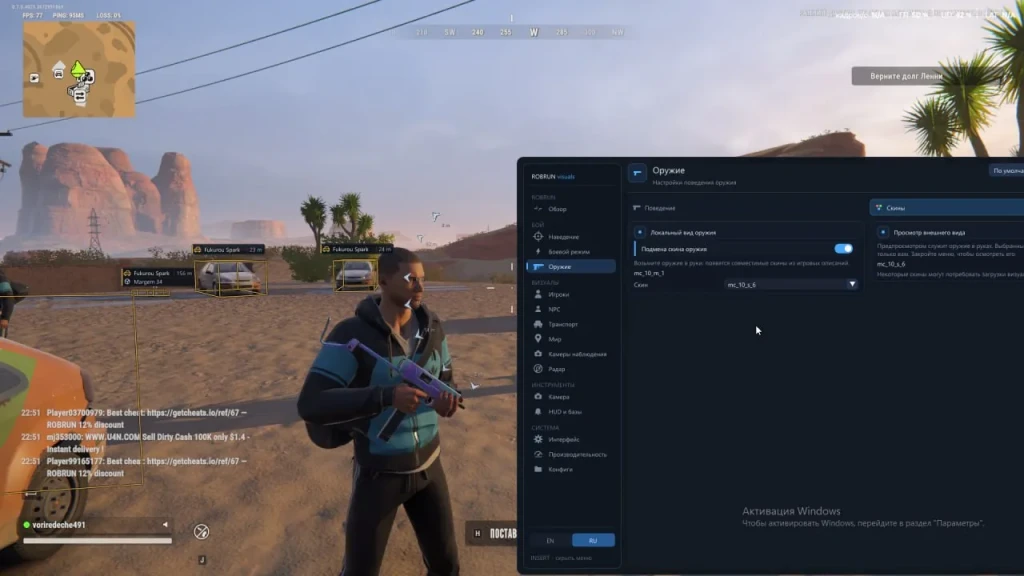
- Skin Changer – allows you to change the skin for the active weapon in your hands (visible only to you)
- Battle-Mode – allows you to flexibly configure the display or hiding of ESP elements on the screen
- ESP Preview – preview of the design of visual elements for players, vehicles and shooters
- Visual Presets – select one of the ready-made design options: calm or contrasting
- Clean Screen – hides background text and decorative interface elements to reduce visual load
- Config System – creating, saving, loading and deleting user configurations
- Page Defaults – reset the settings of the current section to default values
- Performance – setting limits on the number of characters and skeletons displayed, as well as the refresh rate of visual elements
- Language – select the interface language: Russian or English