Buy private cheat Phoenix WARDOGS
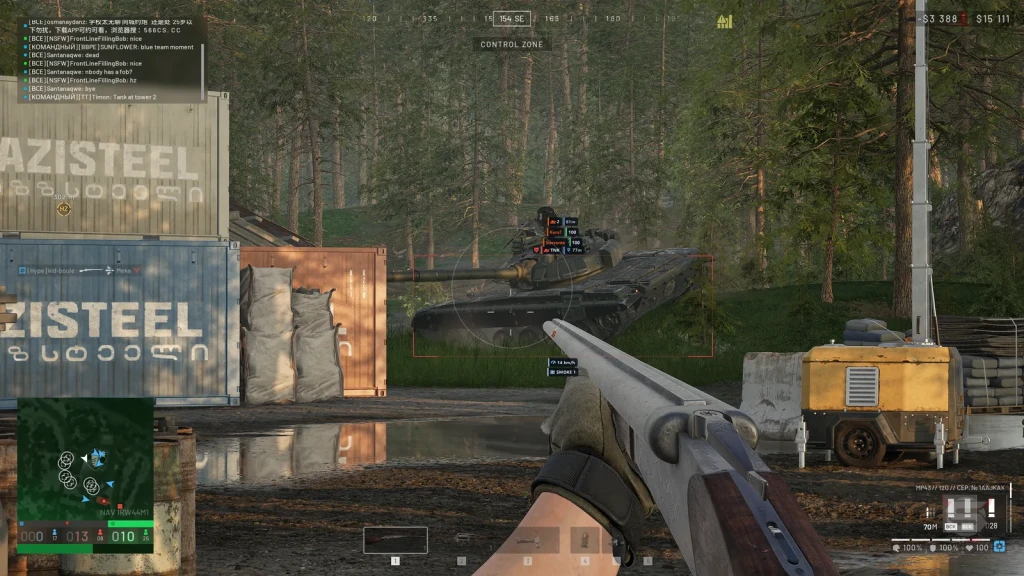
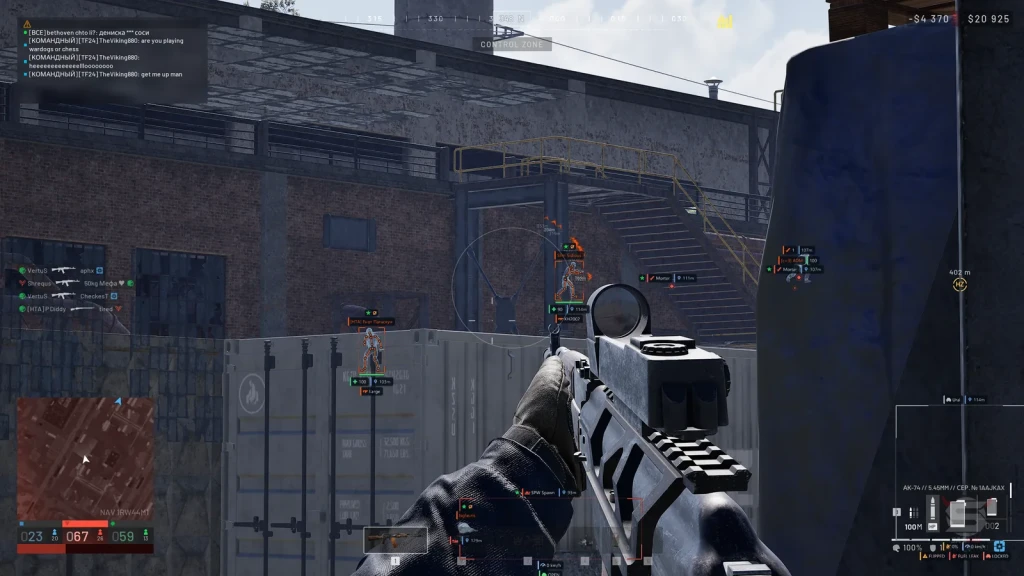
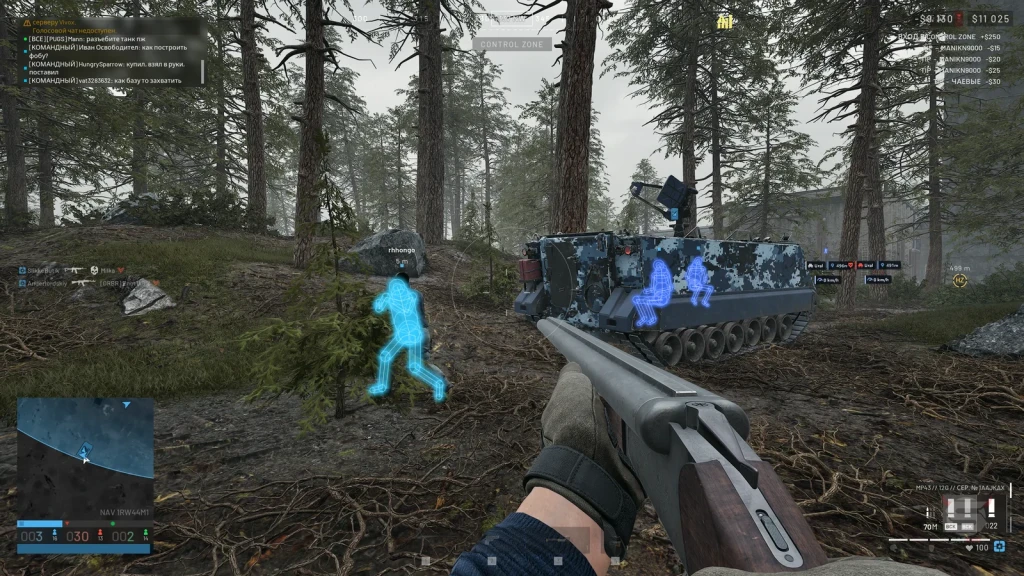
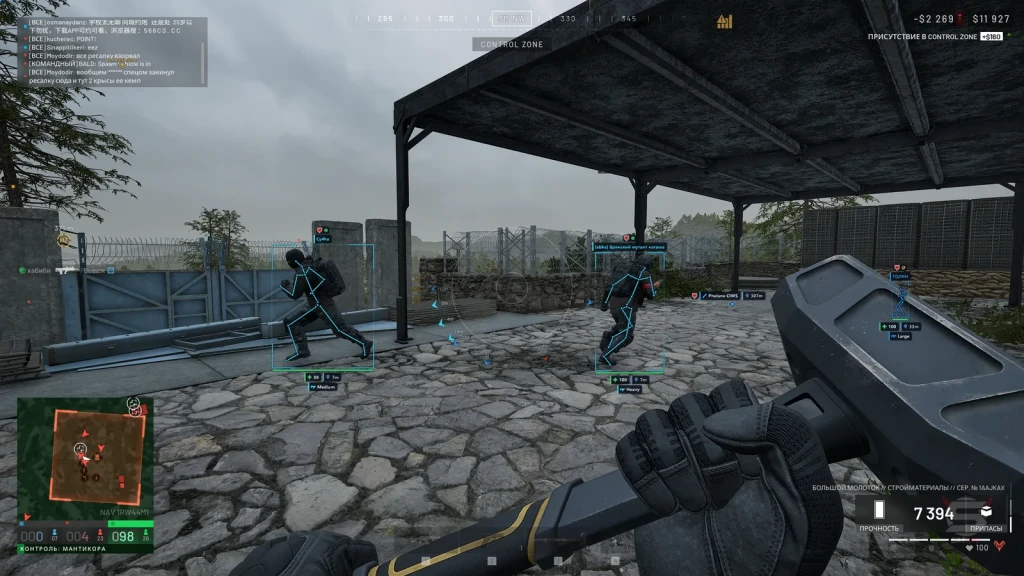
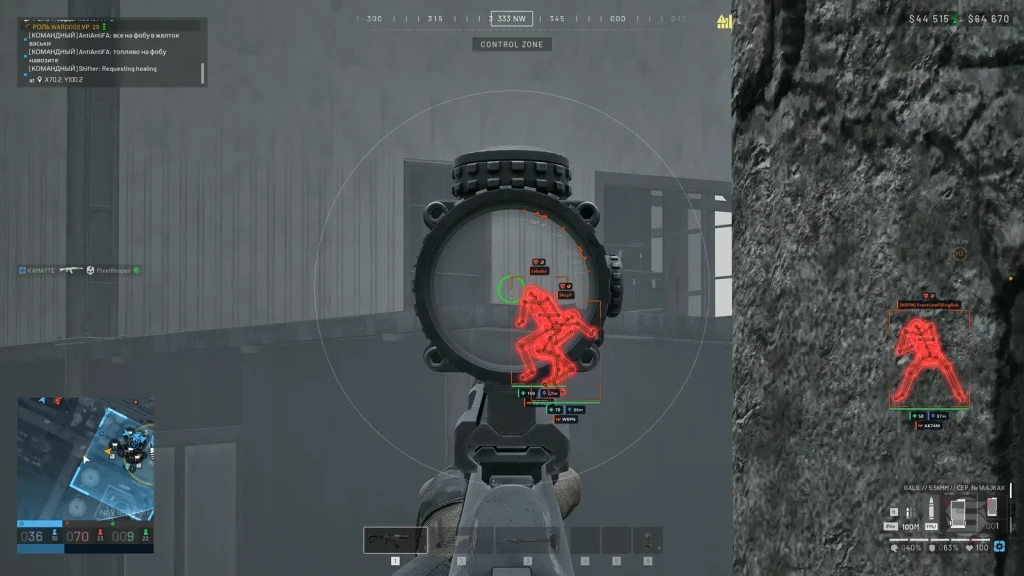
Private cheat Phoenix WARDOGS — drone display, aiming controls and quest information. Also included: trajectory display and third-person view. Client: Steam.
Compatibility
- os
- Windows 10, Windows 11 (21H2, 22H2, 23H2, 24H2, 25H2, 26H1)
- cpu
- Intel & AMD
- gpu
- NVIDIA & AMD
- game client
- Steam
Features
Aimbot
- Enable – enables or disables the aimbot
- Key – aimbot activation key
- Silent – directs bullets to the target without moving the camera
- Teleport Bullet – transfers the bullet to the target immediately after firing
- Aim Bone – allows you to select a bone to aim at (head, neck, chest, pelvis or closest to the aim)
- Target Priority – target priority by proximity to the sight or distance
- FOV – adjusts the radius of target acquisition around the sight
- Smooth – adjusts the smoothness of hovering
- Max Distance – sets the target acquisition range
- Visible Only – targeting only enemies in the field of view (outside cover)
- Ignore Downed – excludes knocked players from targets
- Friendly Fire - targeting allies
- Sticky Target – holds the selected target when holding down the aimbot button
- Prediction – takes into account target movement and bullet drop to calculate lead
- Recoil Compensation – compensates for weapon recoil and camera movement
- FOV Circle – displays a circle of the target acquisition area
- Aim Point – shows the active aiming point
- Snapline – displays a line to the target from the sight
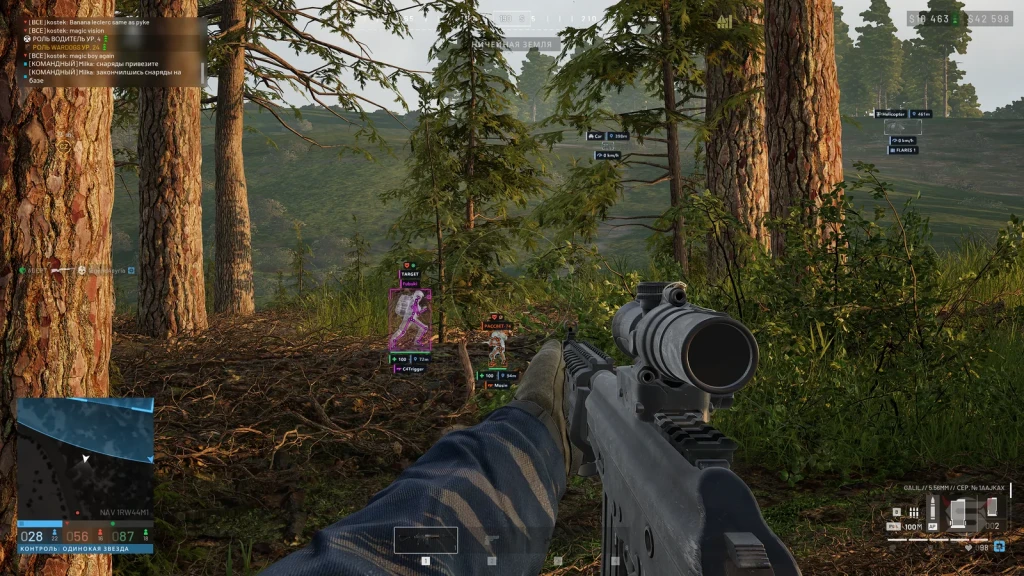
- Highlight – highlights the selected target and displays labels (TARGET or LOCKED)
- Preview – shows a potential target before aimbot activation
Weapons
- No Recoil – disables weapon recoil
- No Spread – eliminates shot spread
- Instant Bullet – carries a bullet to a visible enemy in the line of fire
- Instant ADS – instant transition to aiming mode
- No Gun Sway – disables weapon swaying
- No ADS Sway – removes crosshair sway in ADS mode
- Grenade Prediction – displays the expected trajectory of a grenade throw
- Grenade Bounces – Shows grenade bounce points
- Blast Radius – displays the grenade explosion radius
- Victims – targets within the explosion radius
- Auto Calibrate – automatically determines the speed, fuse time and explosion radius of the throw
Artillery
- Mortar L81 – calculates guidance for the L81 mortar
- Howitzer SPH-2 – calculates guidance for the SPH-2 howitzer
- Tank Cannon – shows the expected impact point of a tank cannon shell
- Shot Arc – allows you to select an automatic, flat or mounted projectile trajectory
- Fire Cross – displays the readiness to fire indicator (when the barrel is aimed at the target)
- Info Panel – shows the distance to the target, pointing angle and miss value
- Flight Path – displays the flight path of the projectile
- Impact Point – shows the expected point of impact of the projectile
- Map Pick – allows you to target an enemy or an arbitrary point on the game map
- Ping Aim – points the weapon at a marker set in the game
- Follow Target – tracks the selected enemy or vehicle in motion
- Auto Lay – automatically turns the gun in the direction of the target
- Incoming Shells – warns of shells falling nearby with a red ring and the “STRACKED” notification.
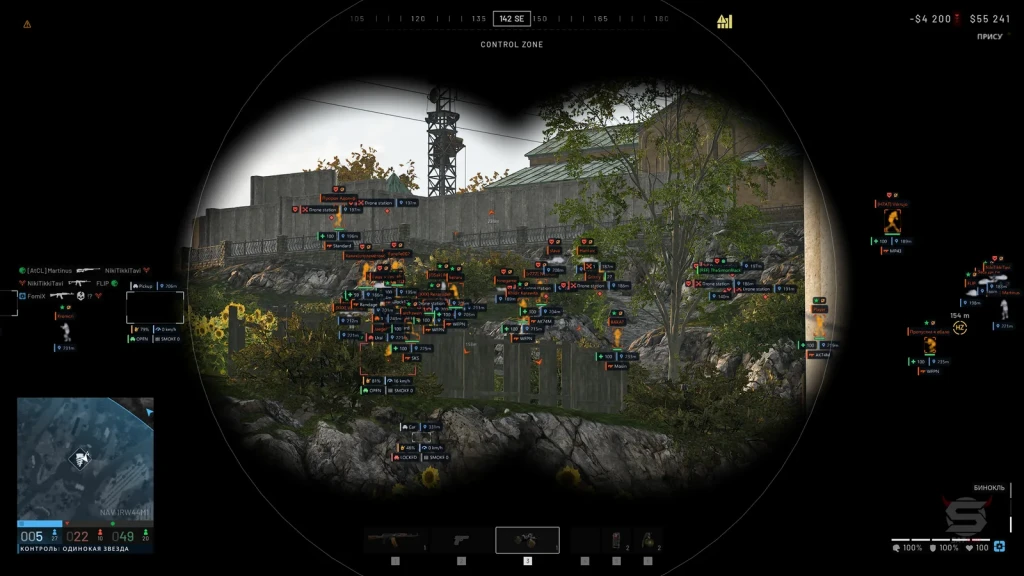
- Emplacement ESP – displays mortars, drone stations and installations with strength information and a filter of allied objects
Players ESP
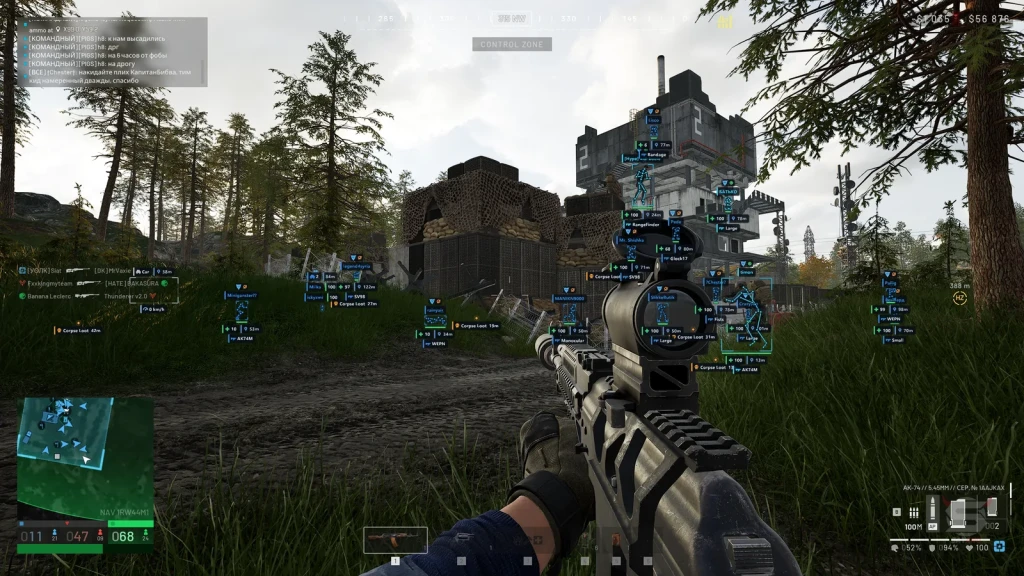
- Box – Displays players as 2D frames, corner frames or 3D boxes
- Health – shows health by number, bar or both at the same time
- Team - Displays squad information and faction emblem as text, icon, or both
- Max Distance – sets the maximum display distance for players
- Skeleton – displays the skeleton of players with adjustable line thickness
- Name – shows player nicknames
- Distance – displays the distance to players
- Weapon – shows the weapon in the player's hands
- Visibility Icon – indicates the player’s visibility with an icon
- Ping – displays the player's network latency
- Vehicle Crew – unites the crew of one vehicle into a common information panel
- Off-Screen Arrows – Shows directional arrows to off-screen players with adjustable radius and size
- Arrow Distance – displays the distance to the player next to the arrow
- Aiming at Me – Highlights players who see you and aim in your direction (even outside ESP range)
- Visible Check – uses different colors for visible players and behind covers
- Teammates – enable display of allies
- Downed – configures the display of downed players (frames, skeleton, nickname, distance, faction, weapon, ping, visibility and arrows)
- Corpse Loot – displays loot on the bodies of dead players separately from regular loot
- Combat Mode – allows you to hide/show unnecessary ESP categories at the touch of a button
- ESP Focus – Limits the full ESP display to a circle around the crosshair or to an area outside of it
- ESP Text – allows you to customize the font, weight, size, shadow, outline and background of captions
Loot & World ESP (Environment)
- Loot ESP – displays the names of items with a separate distance setting
- Loot Kinds – allows you to customize the display of weapons, ammo, medicine, armor, items and boxes with individual colors
- World ESP – shows the names and distances to objects in the game world
- Grenade Warning – warns about the danger from grenades
- Grenade Radius – displays explosion radius and lethal zone
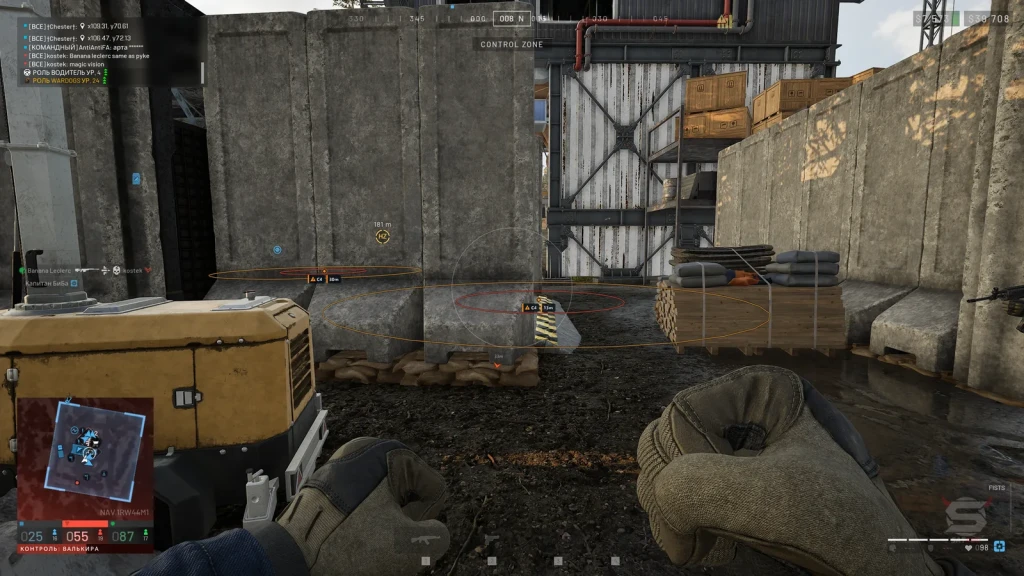
- Mines / Claymores – shows mines and claymores with an indication of the trigger radius
- Other Deployables – displays other installable objects
- Drones – Shows drones and controlled devices with danger warnings
- Show Friendly – allows you to display your own mines and drones
- Grenades – marks grenades on the ground
- C4 / Explosives – displays C4 and other explosives
- Objectives – shows game goals and task objects
- Repair / Fuel – displays repair and refueling points
- Radios – marks radios on the map
- Supply Drops – shows supply points
- Helicopters – displays helicopters as game world objects
- Safe Zone – shows the safe zone
Vehicle
- Vehicle Box – displays vehicles in the form of corner frames, 2D boxes or 3D boxes
- Marker – shows the marker on the vehicle
- Name – displays the name of the transport
- Snapline – draws a line from the screen to the vehicle
- Health – shows the strength of the vehicle
- Status – displays the current state of the vehicle
- Fuel – shows fuel level
- Fuel Leak – indicates a vehicle with a damaged fuel tank
- Speed – displays the current speed of the vehicle
- Locked – shows whether the vehicle is locked
- Smoke / Flares Left – displays the remaining smoke agents and heat traps
- Ownership – allows you to filter vehicles by ownership: allied, enemy or neutral
- Faction Mark - shows the emblem and name of the owner's faction
- Colors – allows you to paint vehicles with one color, distinguish between allied, enemy and neutral vehicles, or use faction colors
- Nearby List – displays a list of nearby transport with distance indication
- Auto Flares – automatically launches heat traps on helicopters and planes
- Missile Warning – warns about being captured by a missile and shows the time before its approach
Chams (VX)
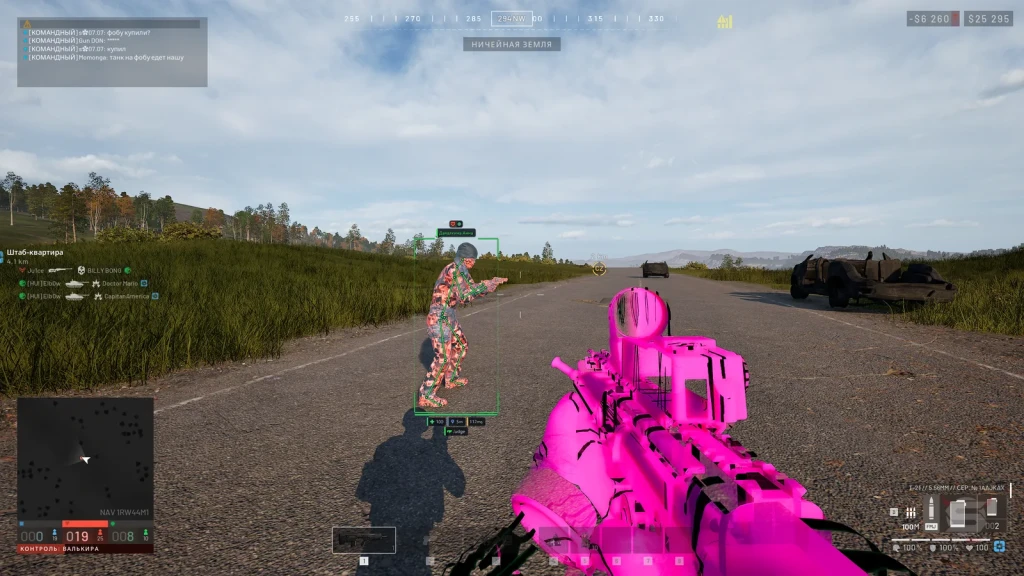
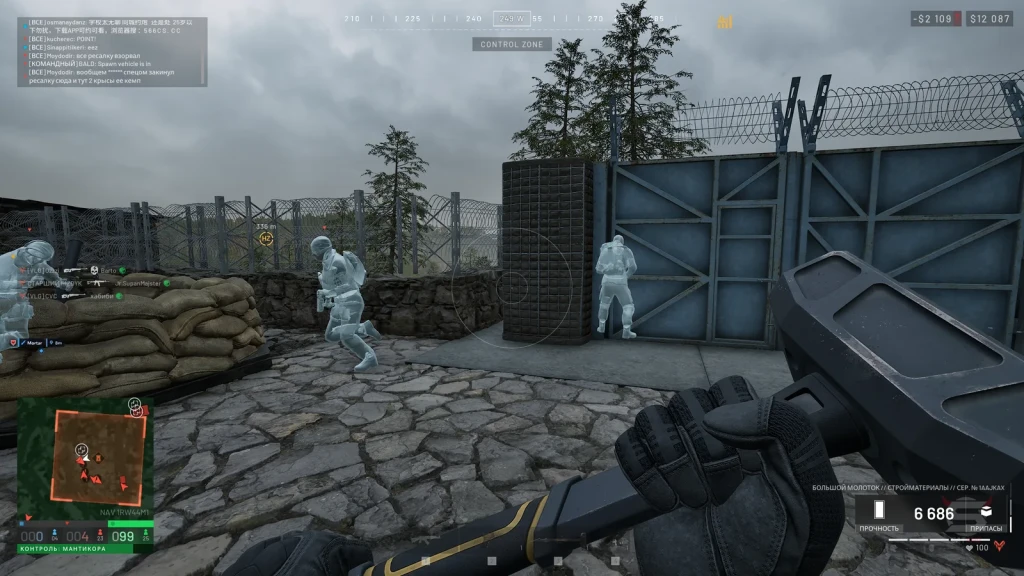
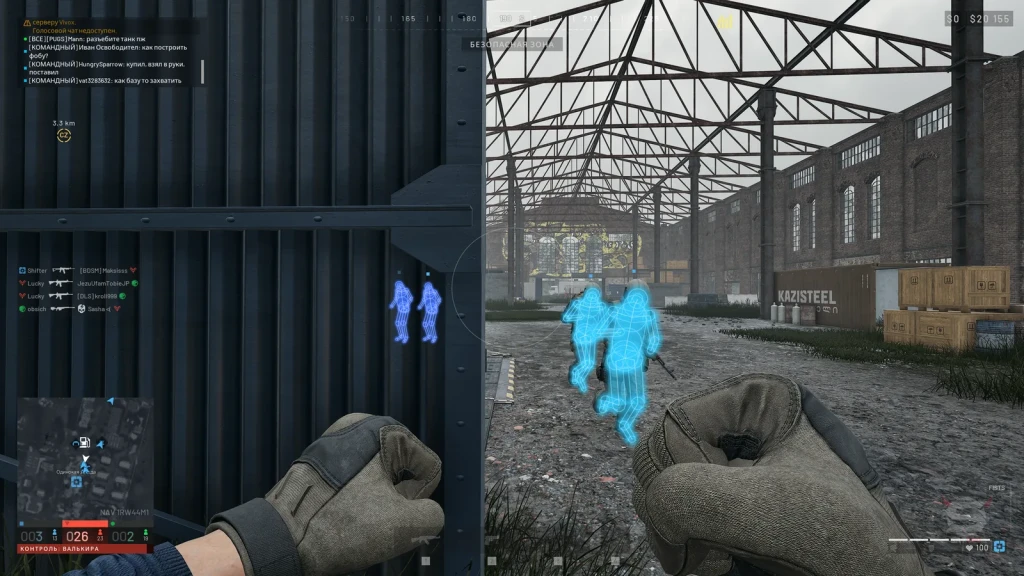
- Player Chams – paints player models in the selected material and texture through walls
- Wall Mode – display material taking into account visibility or use two layers for visible parts and behind walls
- Style – allows you to select a solid color, frame, tinted material, or material from a list
- Overlay – applies an additional layer with the selected color, frame or material
- Through Walls – displays player models through walls
- Chams Colors – allows you to set separate colors for allies and enemies visible and hidden behind walls
- Glow – adjusts the glow intensity of the material
- Auto Materials – automatically selects materials during a match
- Hand Chams – Applies the selected material to hand models
- Hand Mesh – allows you to select an automatic hand model, one of two model options, or a character mesh
- Rainbow – creates an iridescent color effect on the hands with the option to include weapons
Glow
- Player Glow – highlights the silhouettes of players
- Glow Presets – ready-made glow styles (soft, neon, outline and bright)
- Glow Targets – allows you to select lighting targets (enemies, allies and downed players, with fading over distance)
- Glow Show – configures the display of glow (always, only visible or behind walls)
- Glow Style – allows you to choose a soft glow, neon, outline or fill
- Glow Color – adjusts color by command, visibility, health level or rainbow effect
- Pulse – adds glow pulsation
- World Glow – illuminates game world objects, loot and vehicles
- World Presets – offers object lighting styles (soft, beacons and radar)
- World Style – allows you to choose a halo, ring, light pillar or a combination of halo and pillar
- Object Kinds – allows you to select categories of illuminated objects (grenades, explosives, targets, stations, walkie-talkies, turrets, supplies, aircraft and safe zone)
- Vehicle Frame – displays a glowing frame around the vehicle
- Danger Alert – highlights grenades and explosives closer than 15 meters in red with rapid pulsation
- ESP Colors – allows you to use the same colors for the glow as in the ESP settings
Radar hack
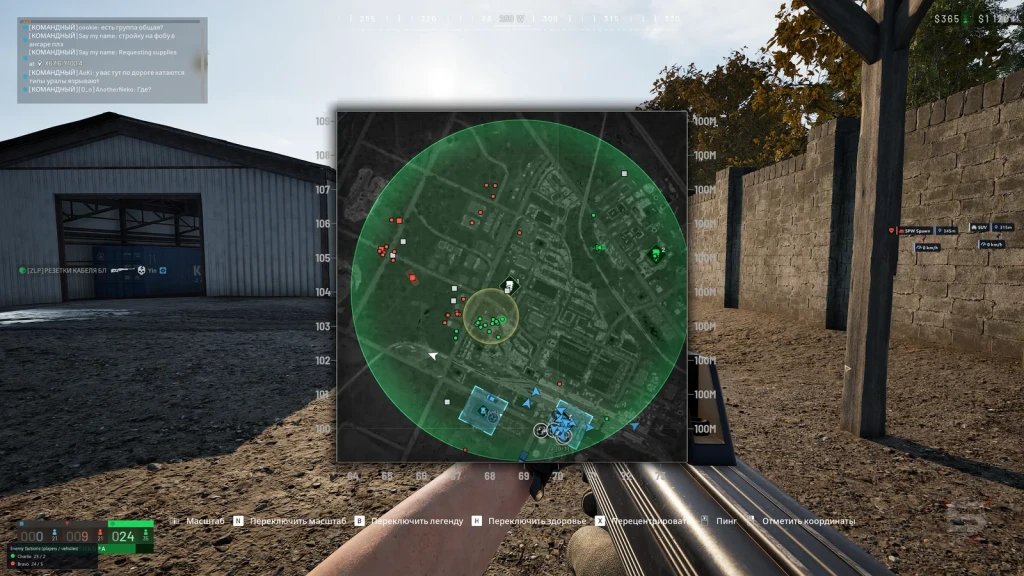
- Radar – displays a round or square radar with adjustable radius, size and transparency
- Rotate – rotates the radar according to the viewing direction
- Grid – displays a coordinate grid
- View Cone – shows the player’s field of view
- Height – denotes players and objects that are higher or lower
- Clamp to Edge – clamps markers of distant objects to the edge of the radar
- Radar Filters – allows you to select the display of enemies, allies, downed players, vehicles and world objects
- Radar Loot - Displays the categories of loot available in Loot ESP, including loot from the bodies of dead players
- Game Map – displays enemies, knocked players and vehicles on the game map
- Map Colors – colors markers on the map according to faction affiliation
Screen Settings
- FOV Changer – allows you to change the camera viewing angle
- Super Zoom – zooms in on the assigned key with the ability to disable the zoom limit
- Freecam – Allows you to move the camera freely using WASD, up and down movement, and speed adjustment
- Third Person – camera in third person mode
- Weapon Offset – allows you to shift the weapon model forward, right and up
- Fullbright – adjusts the brightness of the game environment
- No Fog – turns off fog
- No Suppression – disables visual suppression effects
- No Tinnitus – disables the effect of ringing in the ears
- No Particles – disables particle effects
- No Foliage – disables the display of grass and vegetation
- No Shadows – disables shadows
- No AA – disables image smoothing
- No Decals – disables decals on surfaces
- No Translucency – disables the transparency of surfaces
- FPS Optimize – reduces graphics load by selecting the optimization level (light, medium, strong or maximum)
- Bullet Tracers – displays bullet trajectories as lines on the screen
Weather and Effects
- Presets – ready-made weather and visual profiles (clear day, golden hour, moonlit night, storm, neon, toxic, film, noir, sleep and reset)
- World Grade – allows you to adjust the saturation, contrast, gamma, brightness, exposure, shadows and overall hue of the image
- White Balance – adjusts color temperature and balance of green and purple tones
- Tone Zones – allows you to separately adjust the colors of shadows, midtones and highlights
- Lens – adjusts bloom, its threshold and chromatic aberration
- Vignette – darkens the edges of the screen
- Sky – allows you to adjust the color, brightness of the sky and haze
- Clouds – adjusts the density and color of clouds
- Fog – allows you to adjust the density and color of the fog
- Time of Day – adjusts the time of day and the position of the sun
- Light – allows you to adjust the brightness and color of sunlight and sky lighting
- Wind – regulates the strength and speed of the wind
- Rain – allows you to customize the intensity of rain, jets, splashes, color and visual effects of precipitation
- Shot Effects – customizes visual effects at the point of impact, tracers and sparks, including their scale and the number of effects displayed simultaneously
Other features of Phoenix WARDOGS
- Instant Interact – speeds up actions that require holding down a key
- Infinite Stamina – disables stamina consumption
- Auto Reload – automatically performs active reloading of vehicles and artillery
- Build Hit – directs hammer hits to the yellow marker without moving the camera
- Configs – allows you to save and load multiple settings profiles
- Multiple Profiles – supports multiple separate configurations for different sets of settings